AIDP
One IDE, Two Engines: Developing for Oracle AIDP in VS Code
Developing across Spark and Autonomous AI Lakehouse in VS Code, with the AIDP and SQL Developer extensions, gated notebook features and a practical SQL rendering workaround.
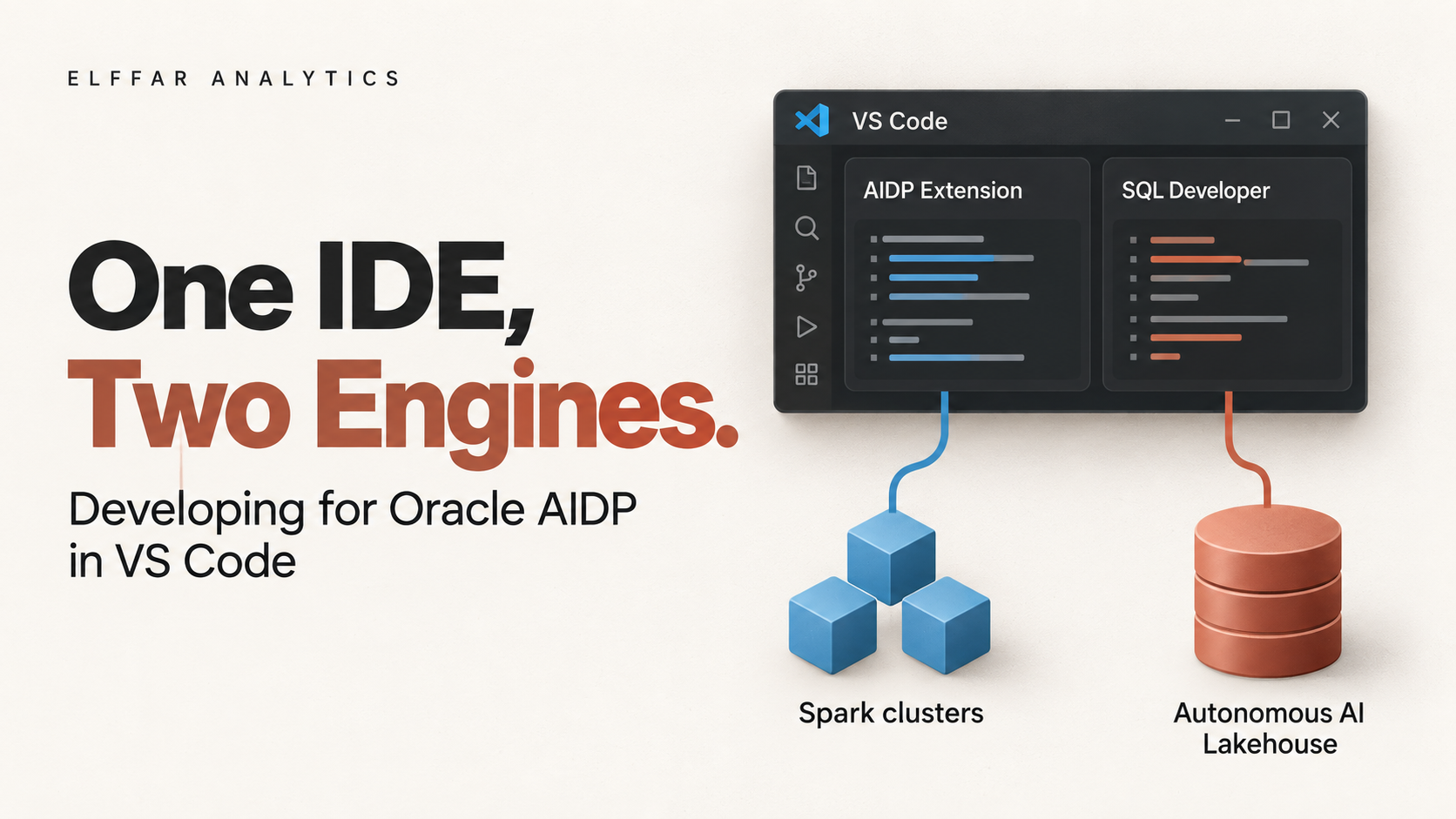
Using the AIDP Developer Extension and Oracle SQL Developer together across Spark and Autonomous AI Lakehouse.
Documentation checked: 15 September 2026
Extension reference: AIDP Developer Extension 4.2.0 (Preview), shown in the settings screenshot and used for notebook testing on 14 September 2026.
An Oracle AI Data Platform project can involve several kinds of development within the same pipeline. There may be Python code preparing source data, Spark SQL transforming files, and Oracle SQL or PL/SQL applying changes to Autonomous AI Lakehouse. Alongside that code sit workflow definitions, validation queries and project documentation.
The engineering task crosses these boundaries even when the tools do not.
That is why the AIDP Developer Extension for Visual Studio Code is interesting. It brings part of the platform development experience into an editor that can also hold the surrounding project. Add Oracle SQL Developer for VS Code, and there is a practical opportunity to work across Spark and the database within one IDE.
For me, the useful question is how much of an everyday AIDP engineering task can be developed, checked and maintained in that environment.
Where the two extensions fit
The AIDP extension connects the editor to remote platform resources. Oracle lists workspace browsing, local file synchronisation, remote Python and SQL execution, compute resources, Workflow jobs and run inspection among its capabilities. Execution uses attached remote compute; installing the extension does not install an AIDP runtime on the laptop. Oracle AIDP Marketplace listing
SQL Developer provides the database development side: browsing objects, executing SQL and scripts, and editing and compiling PL/SQL. This makes it a useful companion when the pipeline includes database-resident transformations and reporting structures. Oracle SQL Developer documentation
I would organise the work as follows:
| Engineering task | Tool to use |
|---|---|
| Work with remote AIDP files and Spark processing | AIDP Developer Extension |
| Run an AIDP Workflow and inspect its run | AIDP Developer Extension |
| Explore lakehouse database schemas and validate tables | SQL Developer extension |
| Develop relational transformations in SQL and PL/SQL | SQL Developer extension |
| Review changes to local project files | VS Code source control and the team's repository process |
| Access notebook controls and work with AIDP notebooks | AIDP Developer Extension, with gated notebook features enabled in the Preview version |
| Use browser-based development and platform interfaces not exposed by the extension | AIDP Workbench |
This is a proposed division of responsibility. Sharing an editor does not mean the extensions share authentication, sessions or deployment behaviour. A successful AIDP connection should not be taken as evidence that the database connection has also been configured.
There is a particularly useful distinction to keep visible: Spark SQL and Oracle SQL have different execution contexts. Before running a statement, check the selected tool and target. The file extension alone is not enough to tell you where the code belongs.
Start with the connections
Install Oracle AI Data Platform (AIDP) Developer Extension from the VS Code Extensions view. Open a local project folder, select the AIDP sidebar and start its setup wizard. Oracle's documentation describes supplying the Workbench URL, confirming the region and selecting the relevant workspace. Verify the connection before working with remote files. Oracle AIDP extension setup
The current Marketplace instructions also describe Browser Login and API Key setup flows. Follow the wizard provided by the installed version and the authentication method appropriate to your environment. Oracle AIDP Marketplace listing
Then configure SQL Developer's database connection for the Autonomous AI Lakehouse environment. The required network access, credentials and any wallet configuration depend on that database's connection setup.
Enabling gated notebook features in the Preview extension
There is one setting worth drawing attention to because it is easy to miss.
Preview and gated feature: The extension settings screenshot shows version 4.2.0 with a Preview badge. Notebook commands and execution controls are hidden by default. The publicly exposed
aidp.notebookFeatures.enabledsetting makes those controls visible. Enabling it does not establish complete notebook functionality or production readiness.
The setting description shown in the extension reads:
Show notebook-specific commands and notebook execution controls. Hidden by default while notebook features are gated.
Its default value is false.
This is an exposed configuration option, with the extension labelled Preview and the notebook features are gated.
When the documentation was checked on 13 September 2026, the public Marketplace overview still describes notebook support as planned for a future release. The exposed setting should therefore not be interpreted as a general-availability announcement. Oracle AIDP Marketplace listing
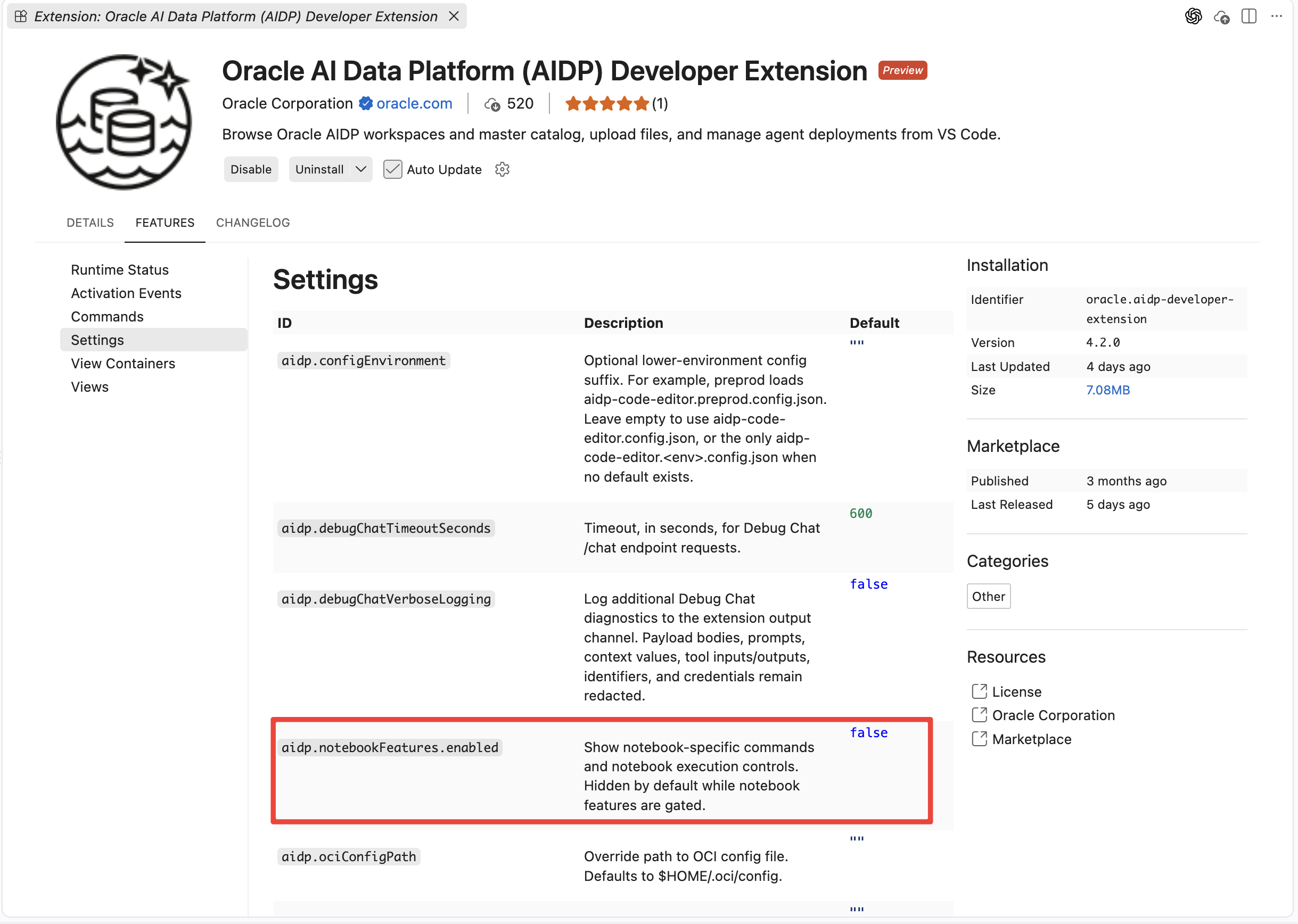
Figure 1. Version 4.2.0 exposes a public setting for notebook controls while identifying those features as gated. The default is false.
Add the setting through the Command Palette
The route demonstrated here uses VS Code's user settings JSON file:
Open the Command Palette with Cmd+Shift+P on macOS or Ctrl+Shift+P on Windows/Linux.
Search for Preferences: Open User Settings (JSON) and select it.
Add the following entry at the top level, inside the existing outer braces:
"aidp.notebookFeatures.enabled": trueIf placing the entry after another setting, add a comma after that preceding setting. If another setting follows it, this new entry also needs a trailing comma.
Save
settings.json.
For example, a settings file containing another preference would look like this:
{
  "editor.fontSize": 14,
  "aidp.notebookFeatures.enabled": true
}
The example illustrates placement and comma usage. Merge the entry into your existing file rather than replacing your other preferences. If the setting already exists, update its value.
To hide the gated controls again, set it to false and save the file.
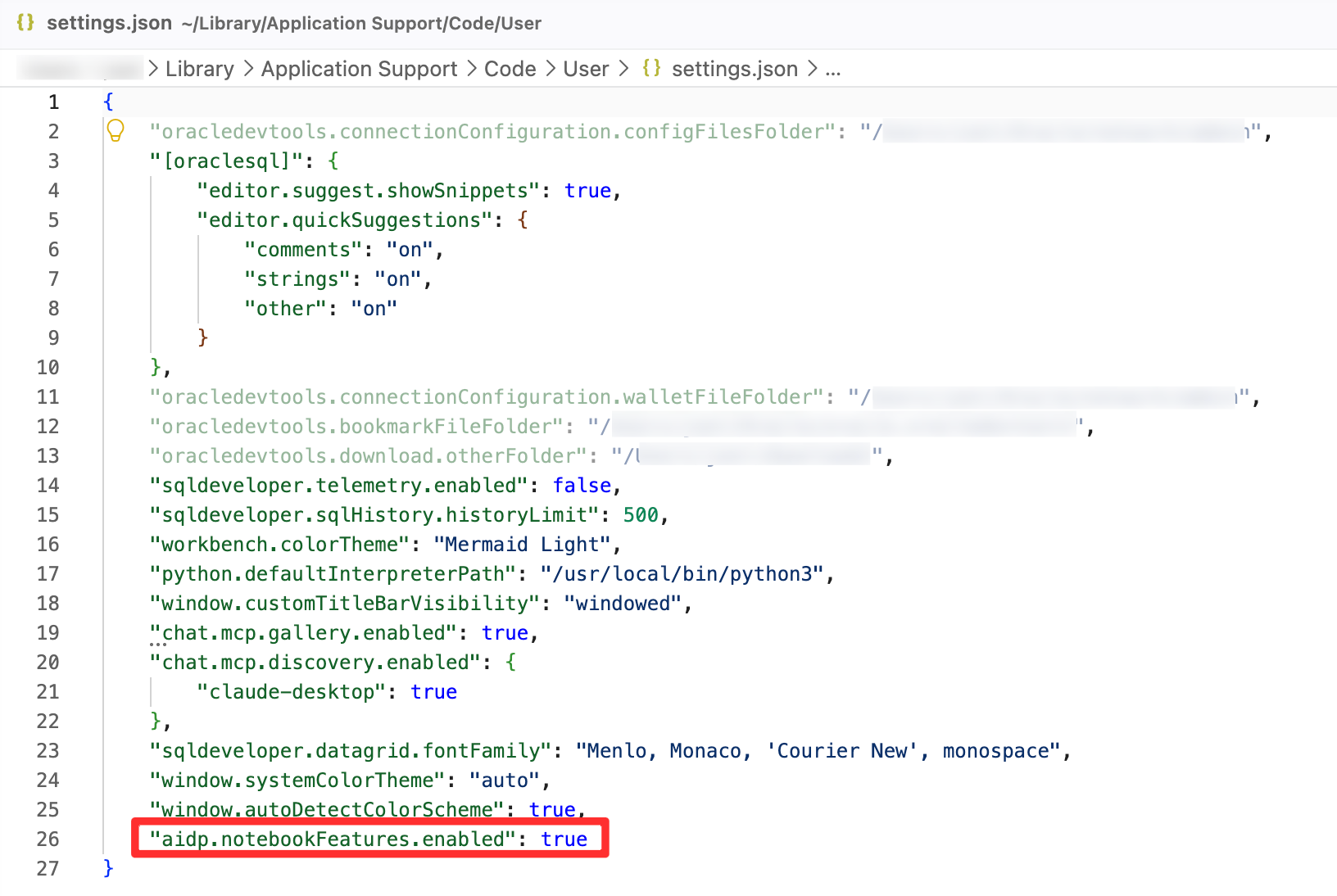
Figure 2. Enable the gated notebook commands and execution controls by adding aidp.notebookFeatures.enabled at the top level of VS Code user settings.
Notebooks in practice: visibility, compute and SQL output
Enabling the notebook setting made a visible difference in my workspace: notebook entries appeared in the AIDP explorer, allowing me to open them alongside the other project files. The following observations are from testing on 14 September 2026 with AIDP Developer Extension 4.2.0, as shown in the settings screenshot above.
Making notebooks visible in the workspace
Before enabling aidp.notebookFeatures.enabled, the workspace view showed folders and other resources, but the notebook entries were absent from the view shown below.
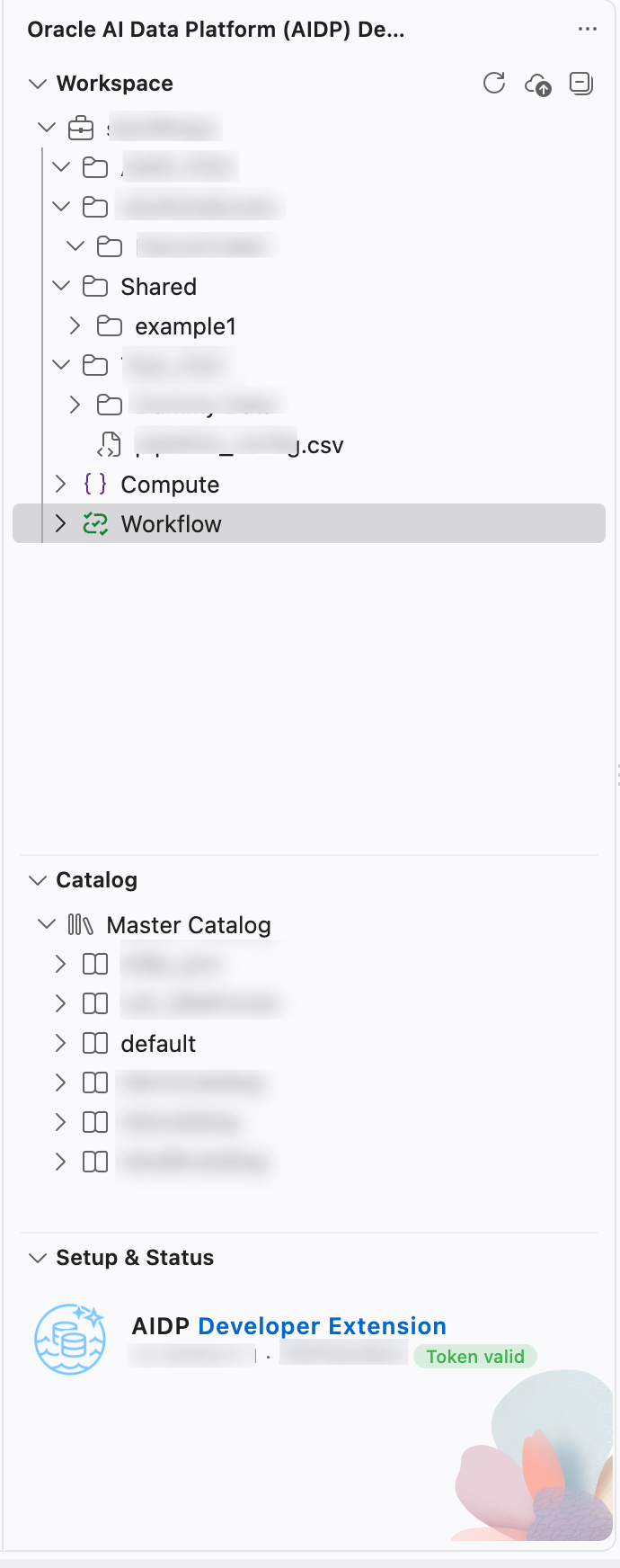
Figure 3. The workspace view before enabling the gated notebook features.
After setting the option to true, notebook entries appeared with their notebook icons and labels. This made existing workspace notebooks accessible through the extension. The setting changes their visibility in VS Code; it does not create the notebooks or provision compute.
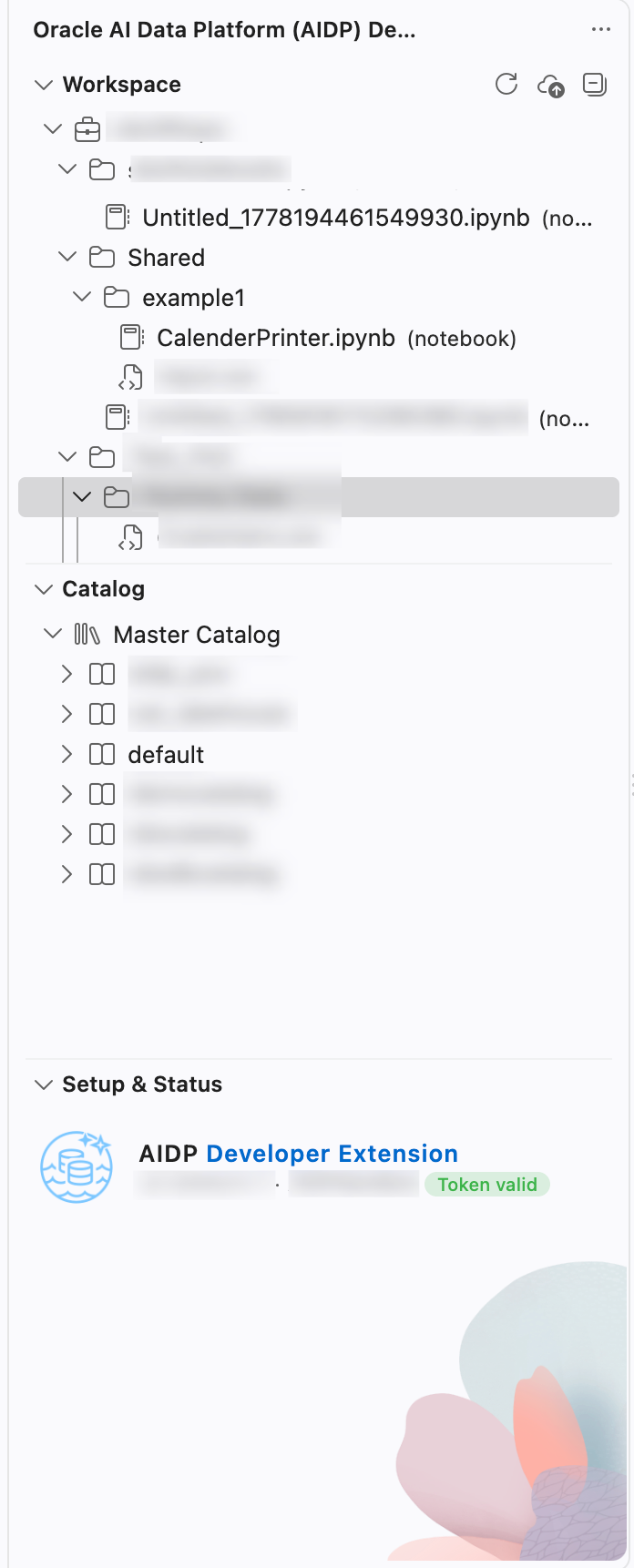
Figure 4. Existing notebooks are visible in the AIDP workspace explorer after enabling the setting.
Selecting the kernel and attaching compute
On the first attempt to run a cell, VS Code prompted me to select a kernel. The option presented was AIDP Cloud Kernel. The compute cluster associated with the notebook did not appear in that dropdown.
These are separate selections. AIDP Cloud Kernel provides the notebook execution integration, while Attach Notebook Cluster connects the notebook to AIDP compute. In the version tested, the extension can reuse an existing active notebook session and its cluster, so attaching does not necessarily prompt for a new cluster selection.
For readers following along, select AIDP Cloud Kernel when prompted, then use Attach Notebook Cluster in the notebook toolbar to establish the compute connection. Both controls are highlighted in Figure 5.
Spark SQL runs, but the result grid has a rendering limitation
With the notebook connected, I ran a Spark SQL query using %sql. The cell showed a completion indicator, but its structured result could not be displayed. VS Code reported:
No renderer could be found for mimetype "application/vnd.sql+json", but one might be available on the Marketplace.
This message is related to the display of the returned output. In the 4.2.0 installation tested, the AIDP extension produced this SQL output format without a matching notebook renderer among the installed extensions.
I then queried the same table from a Python cell using spark.sql(...) and called .show() to print the rows as text. That displayed the airport records successfully, providing a practical workaround for inspecting results in this environment. With the notebook's Spark session available as spark, the pattern is:
spark.sql("""
    SELECT *
    FROM <catalog>.<schema>.airports_data_ai_enriched
    LIMIT 20
""").show(truncate=False)
Replace <catalog> and <schema> with the names used in your workspace. The row limit keeps the example output manageable, and .show() prints a text table. PySpark DataFrame.show documentation
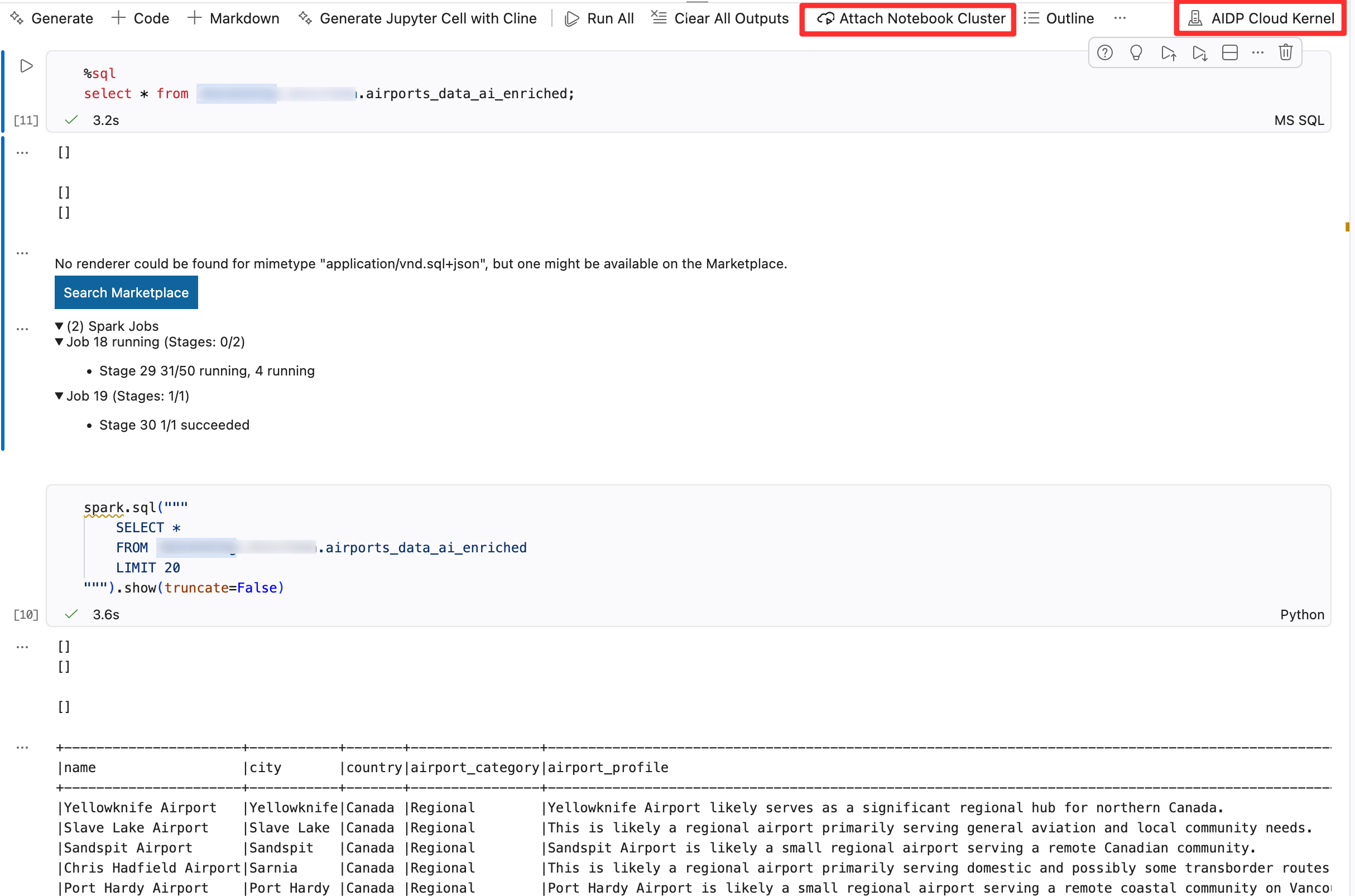
Figure 5. Kernel selection and cluster attachment are separate controls. The SQL cell encounters a missing renderer, while the Python query displays rows as text through .show().
This was enough to browse notebooks, connect to compute and inspect query results from VS Code in my test. The missing SQL renderer remains a limitation of the installation tested. These observations cover notebook visibility and execution; they do not validate the complete edit, save-back and deployment workflow.
Working with the database through SQL Developer
The complementary database view is shown below. SQL Developer displays a connection, the SH schema and its tables, with the SALES table open in the data grid. The object editor also exposes tabs for inspecting the table's definition and related properties.
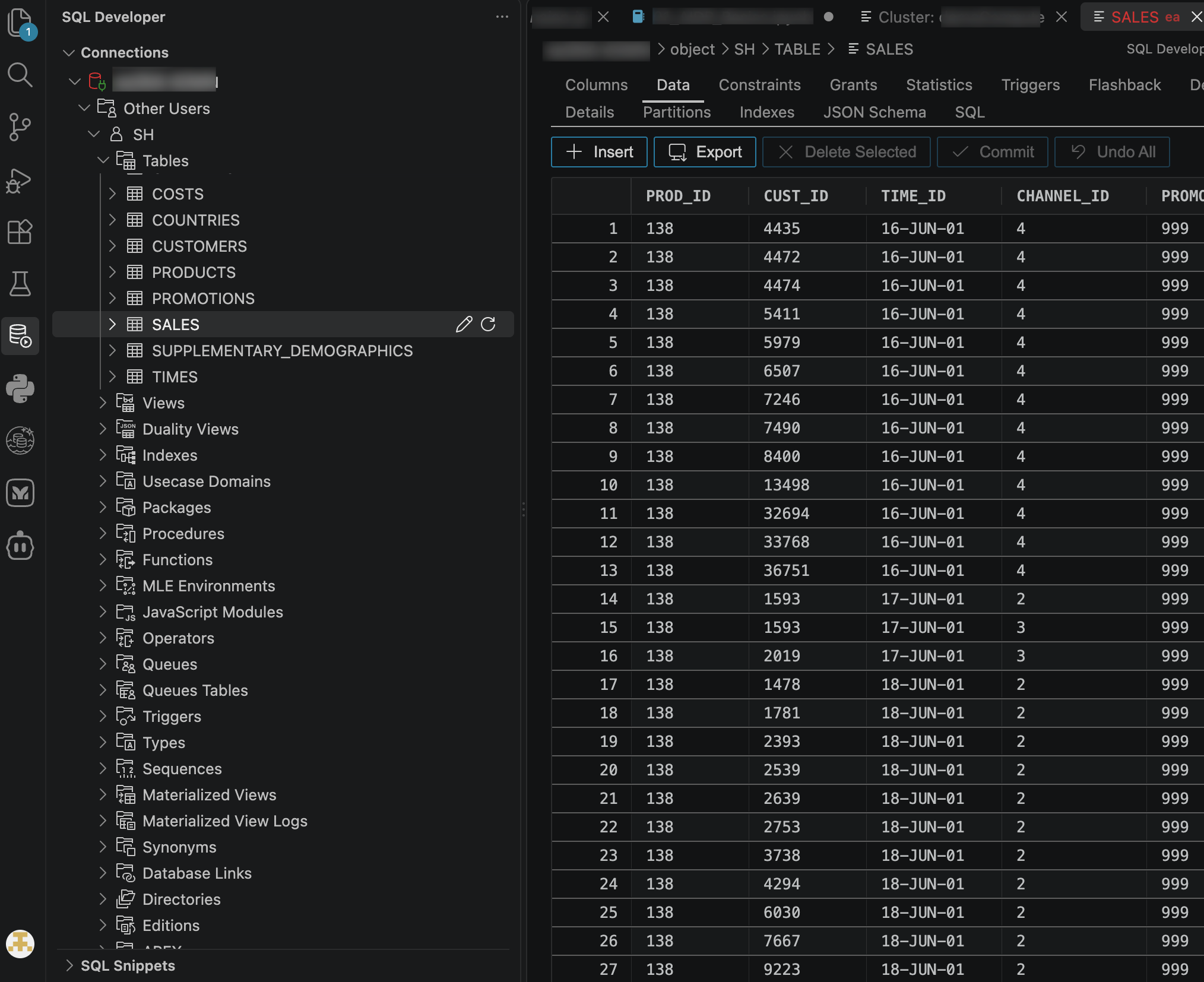
Figure 6. SQL Developer provides schema navigation and table inspection within the same IDE. Here, the data grid displays rows from SH.SALES.
This is the practical value of the pairing: the AIDP explorer supports work with platform resources, while SQL Developer provides a direct view of database objects and data. Moving between them keeps both parts of the development task within VS Code.
The airport notebook and SH.SALES captures are separate examples of the two interfaces. They do not represent successive stages of a single pipeline.
Prepare and inspect the ingestion code
Using the AIDP extension, you should now have the abilty to access workspace files, edit locally, execute them against the intended development compute, then save your local changes back to AIDP. Oracle recommends comparing changes before upload when working in shared projects. Oracle AIDP extension guidance
Those properties belong in the pipeline design. Choosing an IDE does not provide them automatically.
Validate the database side
The same project can contain the downstream SQL or PL/SQL used to build database structures. Keeping these files together makes it easier to review a change that starts in ingestion and affects reporting later.
Where a query needs investigation, SQL Developer also provides Explain Plan. Use it as part of that investigation, recognising that an estimated plan alone does not establish actual runtime behaviour. Oracle SQL Developer Marketplace listing
Check the orchestrated result
After the component checks, run the associated AIDP Workflow and inspect its job run through the AIDP extension. Oracle AIDP Marketplace listing
A successful individual script and a successful end-to-end pipeline answer different questions. The latter must also account for dependencies, parameters, batch selection and failure handling.
For this architecture, Spark is a candidate for file preparation where it adds value, while SQL or PL/SQL changes remains close to its database-resident data. The ability to access both engines from VS Code makes that division easier to work with. It should not determine where processing runs: that remains a decision about the data, transformation and consumption pattern.
A convenient editor still needs a delivery process
A practical starting point is to keep Python, SQL, validation queries and documentation in the same project; review them together; and record which commit was deployed to each environment. Environment-specific credentials should remain outside that project. Development experiments should have a defined path into reviewed releases.
Oracle's guidance to start in TEST before promoting to PROD fits this approach. Oracle AIDP extension guidance
That process is where the larger benefit of an IDE can emerge. A reviewer can understand both the file preparation change and the database change it requires, without reconstructing the relationship from separate remote editors.
A practical home for everyday AIDP development
Returning to the question at the start, my answer is that a substantial part of everyday AIDP engineering can take place in VS Code. The two extensions bring workspace files, Spark execution, database development and validation into one editor, while Git provides a way to maintain the local project and review related changes together.
My notebook testing demonstrated part of that experience directly: enabling the gated features made notebooks visible, attaching compute allowed execution, and PySpark provided a working way to inspect query results when the SQL result renderer was unavailable. That is useful progress, although the Preview limitations mean I would still check the behaviour of each workflow before relying on it for team delivery.
I would use VS Code as the main working environment for projects that span Spark and Oracle SQL or PL/SQL, with AIDP Workbench alongside it for capabilities the extension does not yet expose. Maintaining that work also requires an agreed source of truth and a repeatable process for deploying changes to both AIDP and the database.
The value of “one IDE, two engines” is being able to develop and review a change as one piece of engineering work, from the code that prepares the data to the database structures that make it useful.