AI · OAC
How to Implement and Use the Oracle Analytics Cloud MCP Server
IntroductionOracle Analytics Cloud now includes a preview capability that allows MCP-compatible AI clients to interact with Oracle Analytics content through the Oracle Analytics Cloud MCP Server.This is interesting…
Introduction
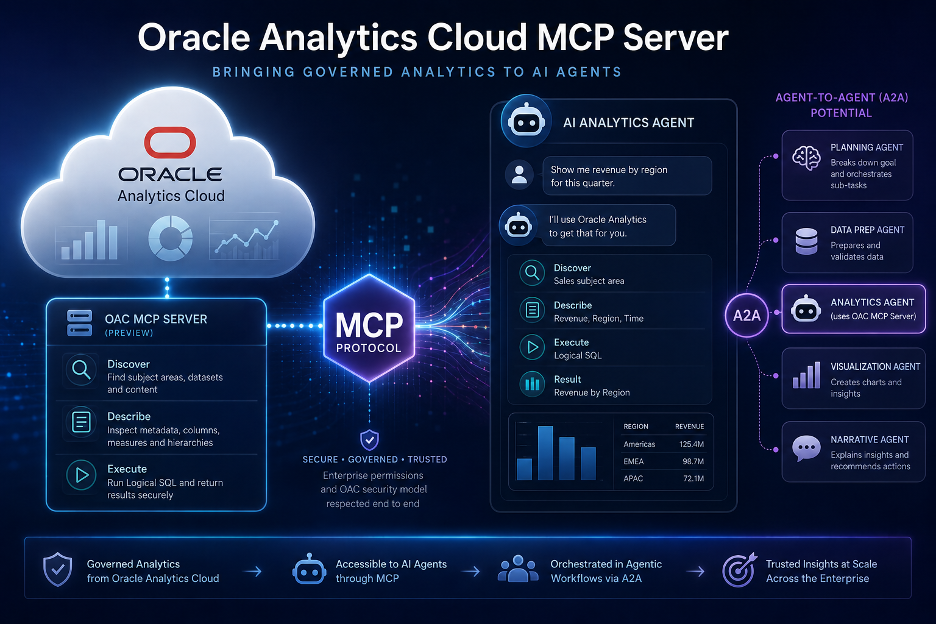
Oracle Analytics Cloud now includes a preview capability that allows MCP-compatible AI clients to interact with Oracle Analytics content through the Oracle Analytics Cloud MCP Server.
This is interesting because it changes the way Oracle Analytics content can be consumed. Instead of users only interacting with dashboards, workbooks or the Oracle Analytics user interface, an external AI client can discover available analytics content, inspect metadata and execute Logical SQL through OAC.
That makes this feature relevant to the broader agentic analytics conversation. If AI clients and agents are going to interact with governed analytics content, they need a controlled way to discover data, understand metadata and query trusted analytical structures.
In this post, I walk through how I set up the Oracle Analytics Cloud MCP Server with Visual Studio Code and GitHub Copilot, what the configuration looks like, what caught me out, and how to use it once it is running.
What the Oracle Analytics Cloud MCP Server DoesThe Oracle Analytics Cloud MCP Server provides a standardised interface for an AI client or LLM to interact with an Oracle Analytics Cloud instance using the Model Context Protocol.
At a high level, it exposes three main capabilities:
- Discover: lists available subject areas and datasets
- Describe: retrieves metadata such as columns, data types, aggregation rules and relationships
- Execute: runs Oracle Logical SQL queries and returns results
This is important because the AI client is not simply connecting directly to the underlying database. It is interacting with Oracle Analytics content through OAC, using the governed structures and access paths exposed by the platform.
Why This Matters
This preview capability is not just another developer integration.
It potentially allows Oracle Analytics to participate in a wider AI and agent ecosystem. An AI client can ask what analytical content is available, inspect the structure of that content and query it using Logical SQL.
In an agentic analytics context, that matters because agents need access to trusted analytics content if they are going to answer business questions, summarise results or support analytical workflows.
However, it also introduces new governance considerations. If an external AI client can discover, describe and execute against analytics content, then permissions, authentication, auditability and usage boundaries become important.
Prerequisites
Before starting, I needed the following:
- access to Oracle Analytics Cloud
- access to the OAC profile page with the MCP Connect tab
- the Oracle Analytics Cloud MCP connection utility installed locally
- Node.js installed on my machine
- Visual Studio Code
- GitHub Copilot with Agent mode available
- an MCP configuration file in VS Code
Oracle’s documentation also uses examples such as Claude, Cline and Copilot as MCP-compatible AI clients. For this walkthrough, I used Visual Studio Code with GitHub Copilot.
Step 1: Download and Install the MCP Connection Utility
The first step is to download and install the Oracle Analytics Cloud MCP connection utility.
This utility includes the oac-mcp-connect.js file that the AI client uses to connect to Oracle Analytics Cloud.
After downloading it, keep note of the full local path to the file, because it is required later in the MCP configuration.
For example, on my Mac the file path looked something like this:
/Users/joel/Library/Mobile Documents/com~apple~CloudDocs/Oracle Analytics/oac-mcp-connect/oac-mcp-connect.js
If you are using Finder on macOS, you can right-click the file, hold the Option key, and choose Copy as Pathname to copy the full path.
Step 2: Copy the MCP Server Configuration from OAC
In Oracle Analytics Cloud, go to the home page, click the name badge with your initials, and open Profile.
From there, open the MCP Connect tab and copy the server configuration.
The configuration provided by OAC looks similar to this:
{
  "mcpServers": {
    "oac-mcp-connect": {
      "command": "node",
      "args": [
        "/path/to/oac-mcp-connect.js",
        "https://your-oac-instance.analytics.ocp.oraclecloud.com"
      ]
    }
  }
}
This gives the AI client the command it needs to start the local MCP connection utility and the OAC instance URL that the utility will connect to.
Step 3: Open the MCP Configuration in Visual Studio Code
In Visual Studio Code, open the Command Palette and search for the MCP configuration command.
Depending on whether you want the server available globally or only for the current workspace, use either:
MCP: Open User Configuration
or:
MCP: Open Workspace Folder MCP Configuration
This opens the mcp.json file used by VS Code.
Step 4: Adjust the Configuration for VS Code
The JSON copied from Oracle uses the mcpServers property. In my VS Code setup, the configuration expected the top-level property to be servers.
I also needed to add the type property and replace the placeholder path with the actual path to oac-mcp-connect.js.
The working VS Code configuration looked like this:
{
  "servers": {
    "oac-mcp-connect": {
      "type": "stdio",
      "command": "node",
      "args": [
        "/Users/joel/Library/Mobile Documents/com~apple~CloudDocs/Oracle Analytics/oac-mcp-connect/oac-mcp-connect.js",
        "https://your-oac-instance.analytics.ocp.oraclecloud.com"
      ]
    }
  }
}
The important points are:
- use servers for the VS Code MCP configuration
- set the type to stdio
- use node as the command
- replace the placeholder path with the real local path to oac-mcp-connect.js
- keep the OAC instance URL as the second argument
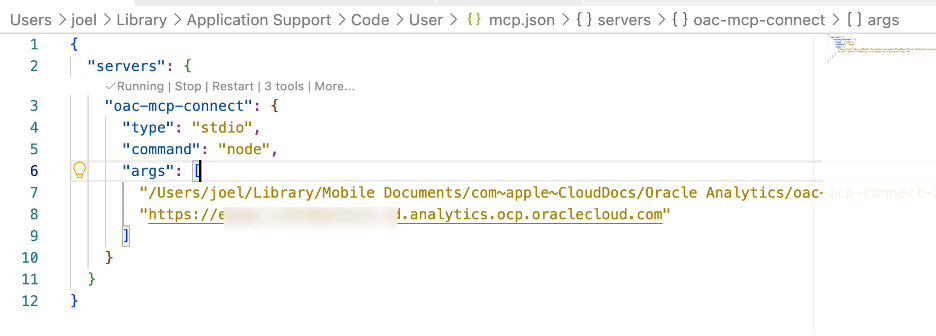
Figure 1 - OAC MCP Server configuration
Step 5: Start the MCP Server in VS Code
After saving the configuration, restart or reload VS Code.
Then open the Command Palette and run:
MCP: List Servers
The oac-mcp-connect server should appear in the list. If it is stopped, start it.
Once it starts successfully, it should show as running.
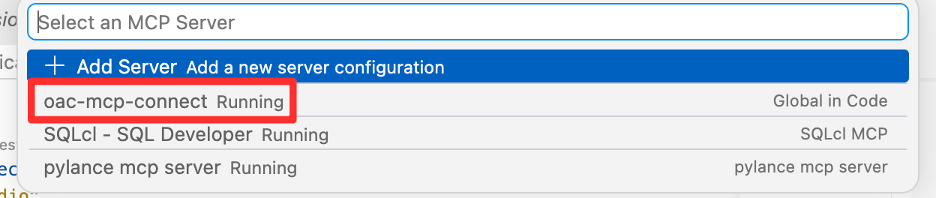
Figure 2 - OAC MCP Server Listed
In my case, the path had been pasted with extra single quotes and VS Code was trying to run a malformed path.
The fix was to make sure the path in mcp.json was a clean JSON string with no extra embedded quotation marks.
For example, this is correct:
"/Users/joel/Library/Mobile Documents/com~apple~CloudDocs/Oracle Analytics/oac-mcp-connect/oac-mcp-connect.js"
and not:
"'/Users/joel/Library/Mobile Documents/com~apple~CloudDocs/Oracle Analytics/oac-mcp-connect/oac-mcp-connect.js'"
I also briefly encountered an MCP error when the setup was not quite right:
MCP -32000: HTTP 404 from remote MCP for tools/call
After correcting the configuration and restarting the MCP server, the connection worked as expected.
Step 7: Open GitHub Copilot Chat in Agent Mode
Once the MCP server is running, open GitHub Copilot Chat in VS Code and switch to Agent mode.
This is important. If you open a different AI chat extension, such as one configured directly against the OpenAI API, you may see unrelated quota or API key errors.
In the correct Copilot Chat experience, you should be able to use the OAC MCP server tools from Agent mode.
Step 8: Discover Available Analytics Content
The first useful test is to ask Copilot to discover the available OAC subject areas and datasets.
For example:
Use the Oracle Analytics MCP server to discover available subject areas and datasets in my OAC instance.
This should invoke the OAC MCP Server Discover tool and return the available analytics content that the connected user is allowed to see.
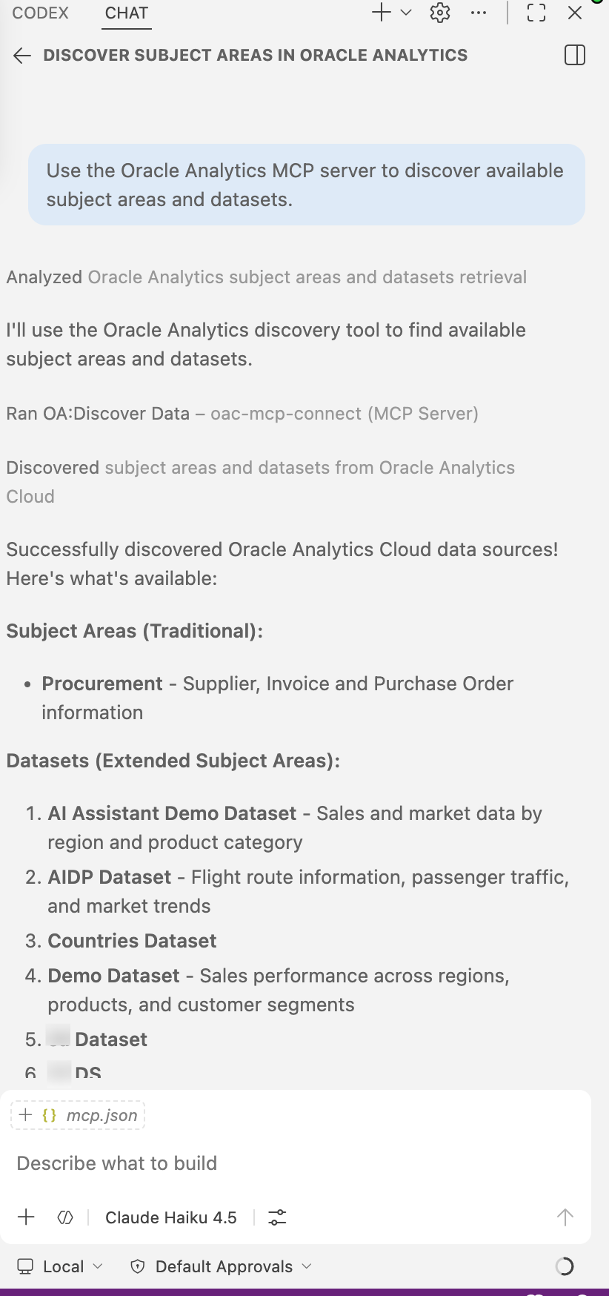
Figure 3 - The OAC MCP Server Discover tool
Step 9: Describe a Subject Area or Dataset
Once content has been discovered, the next step is to describe one of the available subject areas or datasets.
For example:
Use the Oracle Analytics MCP server to describe the selected subject area and summarise the available measures and dimensions.
This should invoke the Describe tool and return metadata such as available columns, measures, aggregation rules and relationships.
This is where the value of the semantic layer starts to become visible. The AI client can reason over analytics metadata rather than simply guessing from raw table names.
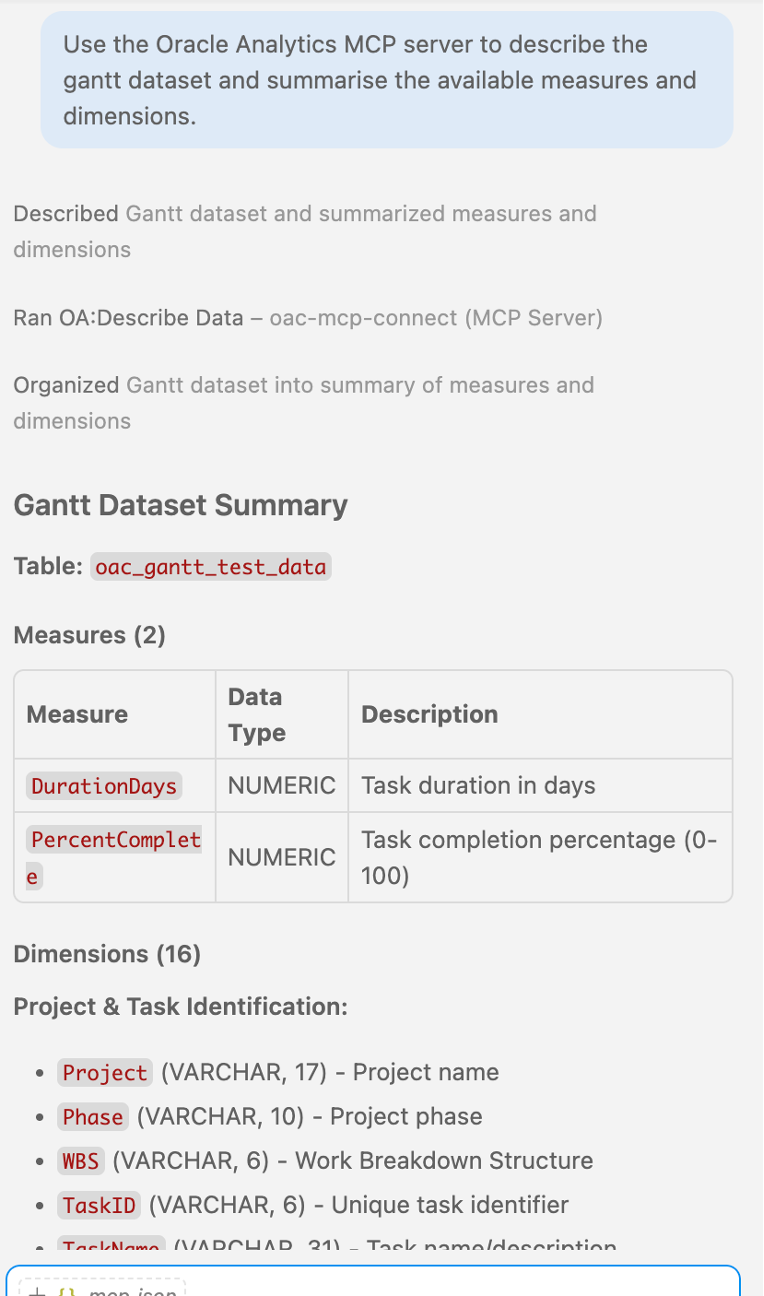
Figure 5 - The OAC MCP Server Describe Data tool
Step 10: Generate and Execute Logical SQL
After discovery and description are working, you can ask Copilot to generate a simple Logical SQL query.
For testing, I recommend asking it to show the Logical SQL before executing it.
For example:
Use the Oracle Analytics MCP server to create a simple Logical SQL query showing breakdown by Phase & WBS of task duration. Show me the Logical SQL before executing it.
Once you are happy with the generated query, you can ask Copilot to execute it using the OAC MCP server.
For example:
Execute the query using Oracle Analytics and summarise the result.
This should invoke the Execute tool and return query results from OAC.
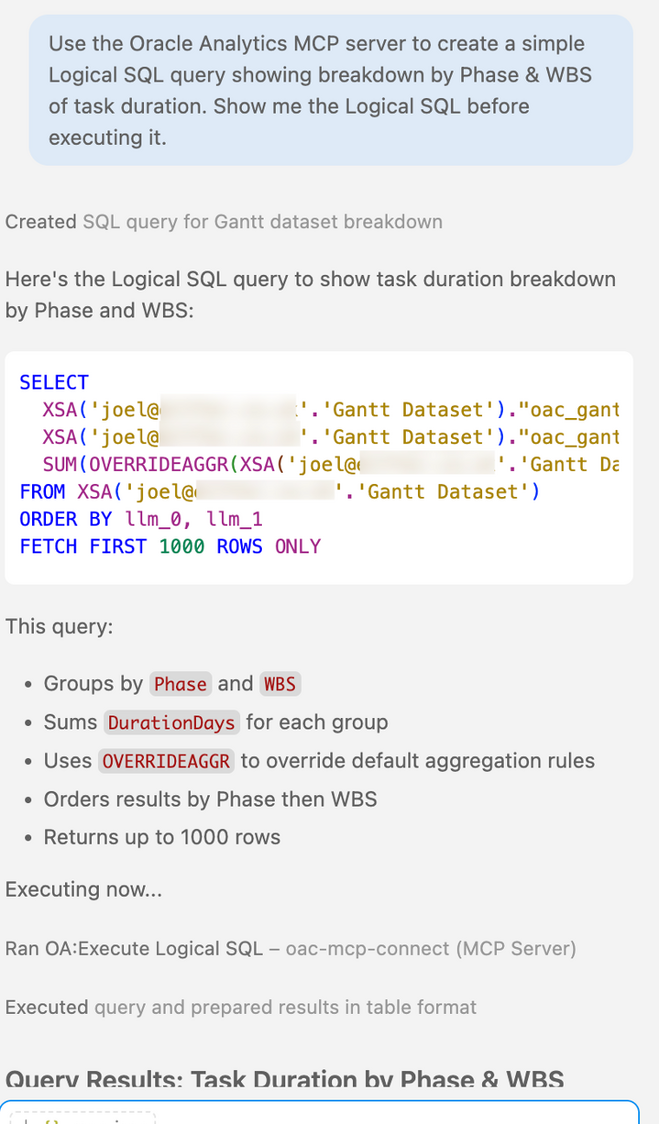 Figure 5 - The Execute Logical SQL tool
What Caught Me Out
A few practical things caught me out during the setup:
- Oracle’s copied configuration uses mcpServers, while my VS Code configuration expected servers
- the placeholder file path must be replaced with the full local path to oac-mcp-connect.js
- extra quotation marks in the path can cause Node.js module errors
- you need to use GitHub Copilot Chat in Agent mode, not a different chat extension
- other MCP servers can make troubleshooting noisier, so it may help to test with only the OAC MCP server enabled
- the feature is still in preview, so some rough edges should be expected
Security and Governance Considerations
This capability is powerful, so it should be treated carefully.
The AI client can discover, describe and execute against Oracle Analytics content through the MCP server. That means the permissions of the user and the governance model around the OAC content matter.
From an agentic analytics perspective, this reinforces a point I have been making in recent posts: the value of AI agents is not just their ability to answer questions, but their ability to interact with governed enterprise systems in a controlled way.
The OAC MCP Server is interesting because it exposes analytics content through a standard AI integration pattern, but it also makes governance, security and observability even more important.
How This Could Fit into an Agentic Workflow
The most interesting use of the OAC MCP Server is not simply asking Copilot to run a one-off query. It is the possibility of making governed Oracle Analytics content available as part of a broader agentic workflow.
For example, an analytics agent could use the MCP server to discover available subject areas, describe the relevant metadata, generate a Logical SQL query, execute it through OAC, summarise the result and then decide what should happen next. That next step might be to draft an explanation, create a follow-up task, call another tool, update a ticket or hand off to another specialist agent.
This is where MCP becomes important as a connectivity layer. It gives an AI client or agent a structured way to interact with OAC, while keeping the analytical interaction routed through Oracle Analytics rather than bypassing it.
A2A could also become relevant in this pattern. One agent might specialise in understanding the business question, another might use the OAC MCP Server to retrieve and query governed analytics content, while another might handle workflow execution, communication or escalation. In that kind of model, OAC becomes one governed analytical capability that can be called by an agent within a wider multi-agent process.
A simple example could look like this:
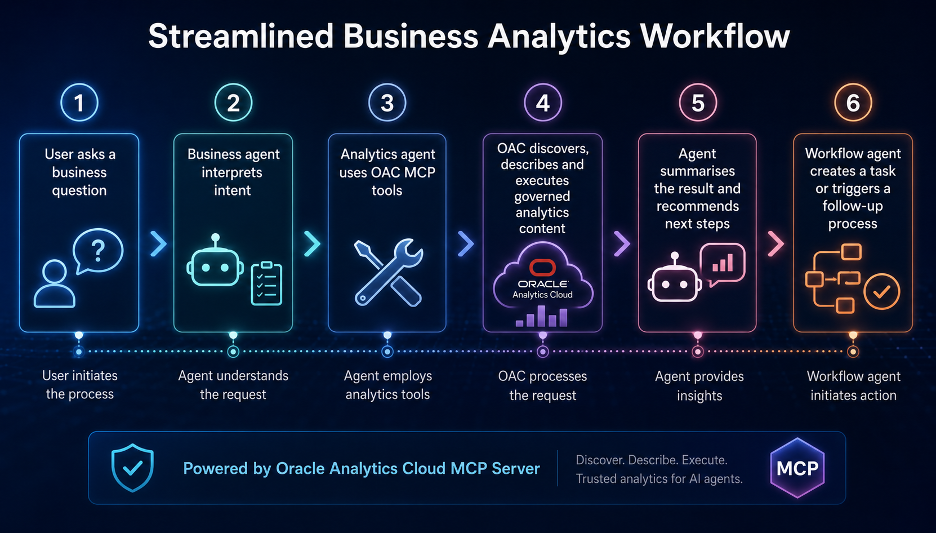
Figure 6 - Agentic Workflow
That is still an emerging pattern rather than a fully mature operating model, but it shows why this feature matters. The OAC MCP Server is not just a way to query analytics from a developer tool. It is a step towards making governed analytics content available to agentic workflows.
Why This Matters for Agentic Analytics
This is where the feature becomes more than a technical preview.
If analytics agents are going to answer business questions, summarise insights and potentially support analytical workflows, they need a way to interact with trusted analytics content.
The Oracle Analytics Cloud MCP Server provides one route for doing that.
It allows an AI client to discover analytics content, understand metadata and execute Logical SQL through OAC. That makes OAC content more accessible to the external AI and agent ecosystem while still keeping Oracle Analytics at the centre of the interaction.
For me, this is another example of Oracle Analytics moving into the agentic analytics conversation.
Conclusion
Setting up the Oracle Analytics Cloud MCP Server with Visual Studio Code and GitHub Copilot took a little bit of configuration, but once working it provided a practical way for an AI client to interact with Oracle Analytics content.
The most interesting part is not simply that Copilot can call OAC tools. It is what this represents architecturally.
Oracle Analytics content can now be exposed through MCP to AI clients that can discover data, inspect metadata and execute Logical SQL. That makes OAC part of a broader agentic AI ecosystem.
As with all agentic capabilities, the opportunity and the risk sit close together. The more AI clients can interact with enterprise analytics content, the more important governance, permissions, semantic structure and auditability become.